Airbrush: Face & Photo Editor
- 4.1
- Rating
- 100.00M
- Installs
- Free
- Price

 Analysis by App-foxy
I spent time with Airbrush: Face & Photo Editor to see whether its main promise—making small portrait corrections quickly—actually helps in everyday photo editing. It is a free photography app from PIXOCIAL TECHNOLOGY (SINGAPORE) PTE. LTD., available for people aged 10 and over. The idea is straightforward: take an ordinary selfie or portrait and make targeted changes without opening a complicated desktop editor.
What makes this app worth discussing is not the number of tools on the screen, but the way it focuses on appearance adjustments. Changing a hairstyle, brightening teeth, softening skin, reshaping the body, and removing acne are all different jobs, yet they share one important risk: a correction can become obvious very quickly. In my experience, the real test is whether I can make a face look fresher while keeping it recognizably human.
The app has been around since October 23, 2015, and its continued visibility is easy to understand. It has passed 50 million installs, carries an average rating of 4.0 from around 1.6 million ratings, and has about 30 thousand written reviews. Those figures suggest a well-known tool rather than a niche experiment, although popularity does not remove the need to check whether its editing style suits you.
You May Also Like

 Blood Strike: 2.5 Anniversary
Blood Strike’s Loadouts Turn Every Drop Into a Tactical Gamble
A close look at Blood Strike’s custom loadouts: how fast access to signature weapons reshapes its battle royale rhythm, rewards preparation, and narrows the gap between fights.

 Pandora - Music & Podcasts
Pandora’s Music Is Easy to Start, but Harder to Recover
Pandora’s strength is its low-effort path from a seed to a station. Its weak spot is how much confidence it asks you to place in connection, setup, and quiet recovery.

 8 Ball Pool
 Is Built on Rivalries, Rematches, and Routine
A close look at the rivalries, rematches, shared routines, and unanswered safety questions that turn a quick pool match into a persistent mobile community.

 Samsung Music
’s Quiet Strength Is Playing What You Already Own
Its reach comes less from spectacle than from dependable access to a personal library. That simplicity is both the app’s strongest retention engine and its ceiling.

 AccuWeather: Weather Radar
AccuWeather Review: A Quick, Clear Forecast for Everyday Decisions
For everyday plans, the best forecast is the one you can understand quickly. AccuWeather makes rain timing, radar, and local conditions easy to act on, with a few trade-offs.

 Hill Climb Racing
Why Hill Climb Racing Still Turns Crashes Into One More Run
A tiny car, a bumpy hill and one more upgrade: Hill Climb Racing keeps resurfacing because its simple chaos makes every near-miss feel personal.
More From Our News Desk
View All News


Airbrush is strongest when one portrait correction matters
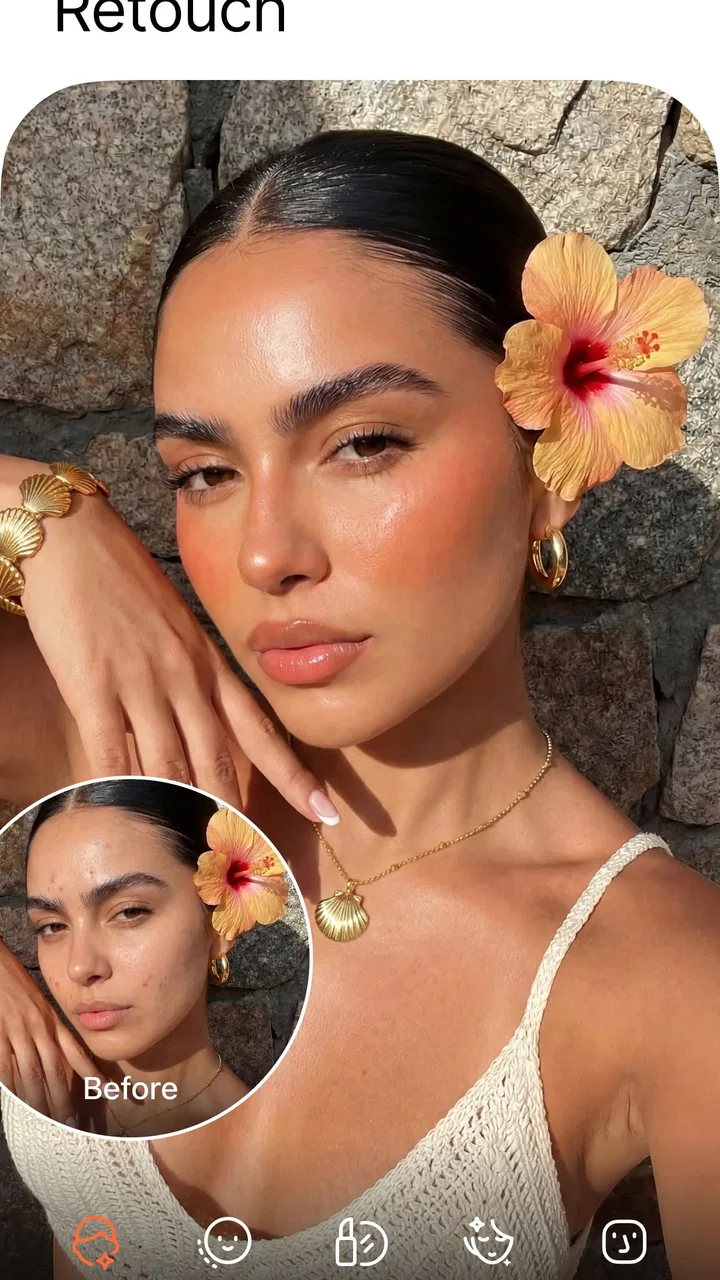
The capability I found most useful is controlled face retouching, especially when a portrait needs one or two quick improvements instead of a complete visual makeover. A small blemish, uneven complexion, or tired-looking area can distract from an otherwise good photo. Airbrush gives that kind of correction a more direct path than a general photo editor, where I would first need to find the right brush, layer, mask, or healing option.
That focus changes how I approach an image. I do not open the editor expecting to build a dramatic composition. I open it when the photograph is already close to usable and needs a little attention. This is an important distinction. If the lighting is poor, the framing is awkward, or the background is distracting, a portrait retouching app cannot solve the whole picture gracefully. It is better at polishing a face than rescuing a fundamentally weak photograph.
The face tools are also more practical when used selectively. Whitening teeth can help when a smile looks dull because of indoor lighting, but pushing the effect too far gives the mouth an artificial appearance. Skin smoothing can reduce the visual impact of minor texture, yet removing every natural detail makes the subject look flat. Acne removal is useful for a temporary spot in a single image, but it should not turn into a routine attempt to erase every feature that makes a face distinctive.
I see the same principle with body reshaping. It can be useful for correcting a small distortion caused by posture or camera angle, but it deserves more caution than a simple blemish tool. A local change can affect nearby clothing, furniture, door frames, or other straight lines. When I edit a portrait, I check the surroundings after every larger adjustment rather than trusting the face or body preview alone.
What the editing process feels like
Airbrush is designed for people who want a result without learning a full retouching workflow. I can start with a portrait, choose the area that needs work, and judge the change visually. That directness is its biggest advantage over broad alternatives such as a conventional mobile photo editor. A general editor may offer more control over color, exposure, layers, and composition, but it can also make a simple skin correction feel unnecessarily technical.
The trade-off is precision. A specialized beauty editor often encourages quick, visible changes, while a professional editor gives me more ways to control edges, opacity, masks, and the relationship between separate adjustments. For a profile image or a casual social post, Airbrush is easier to approach. For a carefully lit portrait that I expect to print or deliver to someone else, I would rather use a tool with deeper manual control.
One habit makes a noticeable difference: I compare the edited picture with the original before saving. I do this by looking away from the screen for a moment, then checking whether the face still has believable texture and whether the correction is consistent across the whole image. A retouch can look subtle while I am concentrating on one cheek, then appear excessive when I view the portrait as a complete photograph.
I also recommend working in stages. I first remove only the temporary distraction, then inspect the result at normal viewing size. After that, I may make a small adjustment to the overall appearance. This is safer than applying strong smoothing immediately, because it keeps the original character of the face visible and makes it easier to identify which change caused a problem.
A realistic everyday use case
Imagine taking a quick group selfie before meeting friends. The composition is good, everyone is looking at the camera, and the light is acceptable, but one person has a noticeable spot on the skin and another has a smile that looks slightly dull under indoor lighting. This is where I think Airbrush makes sense. I can address those isolated distractions without opening a desktop-style editor or spending time rebuilding the entire image.
In that situation, I would keep the changes uneven rather than applying the same treatment to every face. People have different skin texture, lighting, and expressions, so a single strong setting can make one person look natural and another look overprocessed. The app is more useful when I treat each portrait as an individual image instead of using it like a one-tap filter.
For a professional headshot, I would take a slower approach. I would correct temporary marks, keep smoothing restrained, and avoid reshaping unless the camera angle genuinely created an unwanted distortion. A headshot needs to remain credible because the viewer may meet the person later. Airbrush can help prepare the image, but it should not replace careful lighting, a suitable background, or a well-composed original photograph.
It is also handy for a quick profile-picture refresh. A portrait that looked fine in the camera roll can feel less polished once reduced to a small circle or square. Minor distractions become more prominent when the image is viewed at a small size. I found that subtle corrections work better here than dramatic edits, because the reduced image already hides some detail.
Where the convenience has limits
The simplest limitation is that quick retouching can tempt me to over-edit. The app makes appearance changes accessible, but accessibility is not the same as restraint. If I keep increasing smoothing or reshaping, the result may stop resembling the original person. I consider that a workflow issue rather than a reason to reject the app, but it means the best results depend on regular comparisons with the untouched image.
Another limitation is that a face editor is not a complete photography studio. If the image has motion blur, harsh shadows, poor focus, or a distracting background, appearance tools may only disguise part of the problem. A traditional editor with stronger exposure, color, cropping, and selective adjustment controls will usually be the better choice when the photograph needs broader correction.
There is also a creative trade-off between speed and repeatability. Airbrush is convenient for editing one picture, but people preparing a consistent set of portraits may want more exact control over how the same treatment is applied across multiple images. If every face needs to match a specific visual standard, a more advanced workflow can be slower at first but easier to manage precisely.
In-app purchases range from $0.49 to $89.99 per item. The app itself is free, which makes it easy to try before deciding whether the available editing experience is enough for you. I would not pay simply because a tool exists; I would first edit several typical photos and see whether the controls produce a natural result. Someone who only needs occasional blemish removal may have no reason to spend more, while a frequent portrait editor may find extra options more worthwhile.
The current version is 8.2.0, and the minimum operating system is Android 8.0. That makes the app accessible on a broad range of Android devices, though the experience can still vary with screen size, camera quality, and device performance. On a smaller display, fine retouching deserves extra checking because it is easier to miss an uneven edge or an adjustment that spills into hair and clothing.
How it compares with familiar alternatives
Compared with the editing tools already built into many phone galleries, Airbrush offers a more deliberate focus on personal appearance. A gallery editor is often better for cropping, rotating, adjusting brightness, and applying broad color changes. If my only problem is a dark image or a crooked horizon, I would start there rather than opening a beauty-focused app.
Compared with a general-purpose mobile editor, Airbrush is less intimidating for portrait work. I do not need to think in terms of layers or complex selections just to improve a small facial detail. That makes it a good fit for casual users and for anyone who wants the result quickly. The cost of that simplicity is that I may have fewer ways to fine-tune a correction when the automatic or guided result does not quite follow the shape I want.
Compared with a professional desktop workflow, the app is clearly aimed at convenience. I would choose it for a social profile, a family photo, or a quick personal update. I would choose the desktop route for a campaign image, a print project, a detailed retouch, or any job where exact control and a repeatable process matter more than speed.
Small techniques that improve the result
My first practical tip is to edit at a comfortable zoom, then inspect the portrait at the size other people will actually see. A correction that looks unfinished when enlarged may be invisible in a small profile image, while a harsh smoothing effect can still be obvious at normal size. Checking both views prevents me from solving a close-up problem that does not exist in the final use.
My second tip is to protect visual landmarks. Eyebrows, the edge of the lips, the nostrils, hair strands, and the line of the jaw tell the viewer that the face is real. When smoothing or reshaping comes too close to these areas, the result can look blurred or distorted. I keep the strongest corrections away from those landmarks and use only small changes near them.
My third tip is to edit for the lighting, not against it. A face photographed in warm indoor light may naturally have different tones across the cheeks and forehead. Making every area equally bright can remove the sense of depth. I prefer to correct a distracting patch while leaving some natural variation in place, because that preserves the original lighting instead of creating a plastic surface.
A fourth useful check is the background. After reshaping a body or adjusting an edge near the head, I inspect straight objects behind the subject. Door frames, tiles, shelves, and table edges can reveal a correction more quickly than the face itself. If those lines bend or appear inconsistent, I undo the change or reduce it. This is one reason I use body reshaping sparingly even when the tool is convenient.
Finally, I keep the original photograph untouched and treat the edited version as a separate result. That gives me freedom to try a lighter correction later and prevents one rushed decision from becoming permanent. It also helps when I want different versions for a profile picture, a private album, and a social post, since each context may call for a different level of retouching.
Who will get the most from it
I think Airbrush is best for people who regularly take selfies, group portraits, or casual headshots and want targeted improvements without studying a complex editor. It is especially approachable when the desired result is modest: remove a temporary blemish, make a smile look a little brighter, or soften a distracting patch while keeping the rest of the photograph intact.
It can also suit someone who finds standard photo-editing software too broad. The app puts portrait appearance near the center of the experience, so I spend less time searching for the right kind of tool. That focus is valuable for quick personal editing, particularly when I care more about a presentable image than a technically elaborate one.
I would suggest skipping it if your main needs are advanced color grading, detailed background replacement, layered compositions, or highly controlled professional retouching. I would also be cautious if you want every image to preserve completely untouched texture. In those cases, a regular gallery editor or a more manual photography application may fit better.
For me, the deciding question is simple: do I need a portrait to look slightly more polished, or do I need to redesign the photograph? Airbrush handles the first task more comfortably than the second. Its free entry point makes trying it low-risk, while the optional purchases mean frequent users should judge the value of the tools they actually use rather than assuming every extra option is necessary.
After using it, I see Airbrush as a focused portrait touch-up app rather than an all-purpose photo editor. Its best results come from patience and restraint, even though the interface is built for speed. When I make one careful correction and check the image from a normal viewing distance, it can turn an almost-ready portrait into one I am happy to share. When I ask it to change everything at once, the weaknesses become much easier to see.
That balance explains its broad appeal and its boundaries. The app is free, rated for Everyone 10+, and developed by PIXOCIAL TECHNOLOGY (SINGAPORE) PTE. LTD., but those facts matter less than whether its portrait-first workflow matches your habits. If your everyday photos usually need small facial adjustments, I would recommend giving it a try. If you want deep control over the entire image, I would start with a more complete editor instead.
FAQs for Airbrush: Face & Photo Editor
01What features does Airbrush: Face & Photo Editor offer?
Airbrush provides a wide range of editing tools including blemish and pimple remover, teeth whitening, eye brightening, and a variety of filters. It also offers advanced features like reshaping, skin smoothing, and background blurring, making it a versatile option for both casual users and professionals looking to enhance their photos.
02Is Airbrush: Face & Photo Editor user-friendly for beginners?
Yes, Airbrush is designed with an intuitive interface that caters to beginners. The app provides easy-to-use tools and step-by-step guides for each feature, allowing new users to quickly learn and apply photo editing techniques without feeling overwhelmed.
03Does Airbrush: Face & Photo Editor support high-resolution outputs?
Airbrush does support high-resolution outputs, ensuring that your edited photos maintain quality when shared or printed. This is particularly beneficial for users who want to preserve the original resolution of their photos while applying various edits and enhancements.
04Is Airbrush: Face & Photo Editor free to use?
Airbrush offers a free version with basic editing tools and features. However, for access to premium filters, advanced editing tools, and an ad-free experience, users can opt for a subscription. This paid version provides a more comprehensive editing experience, ideal for frequent users.
05Can Airbrush: Face & Photo Editor be used offline?
Yes, Airbrush can be used offline for most of its editing features. This means you can edit photos without an internet connection, making it convenient for users who are on the go or have limited access to Wi-Fi. However, some features may require internet access for updates or downloads.
Pros
- User-friendly interface for easy editing.
- Wide range of filters and effects.
- Real-time editing for instant previews.
- Advanced tools for precise adjustments.
- Regular updates with new features.
Cons
- In-app purchases can be expensive.
- Some features require a subscription.
- Occasional ads disrupt editing flow.
- Large app size may affect storage.
- Complex edits may lag on older devices.

Airbrush: Face & Photo Editor
Gallery